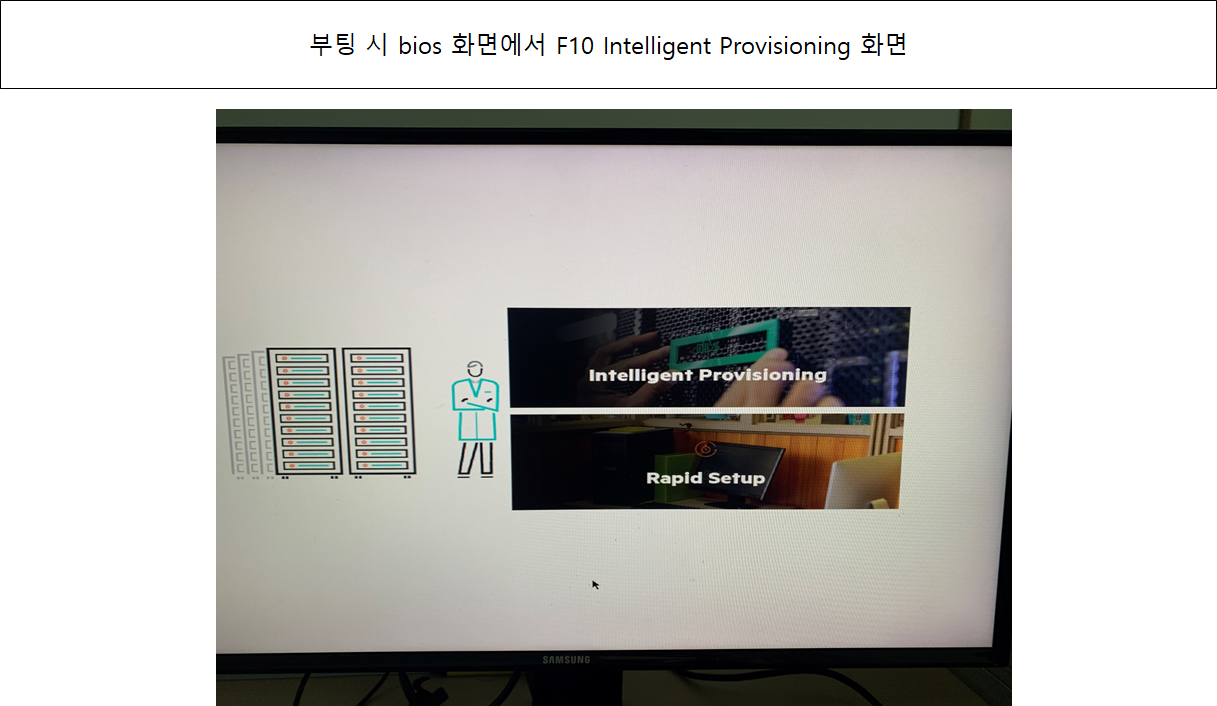
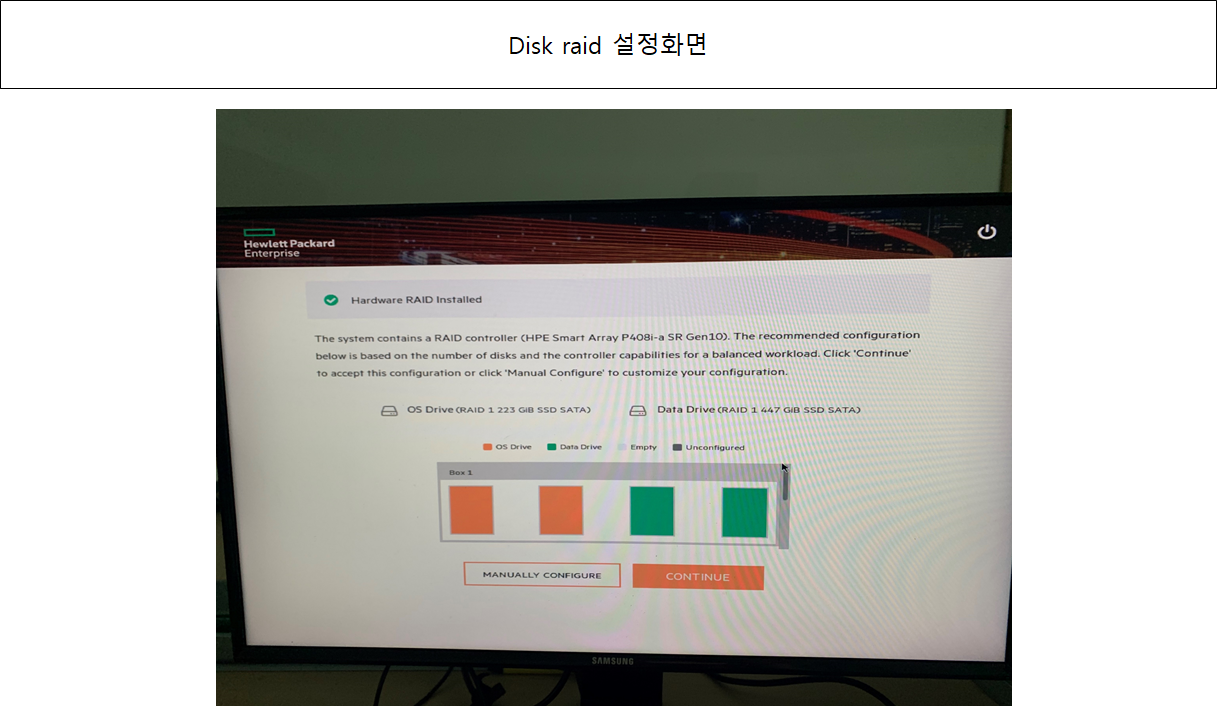
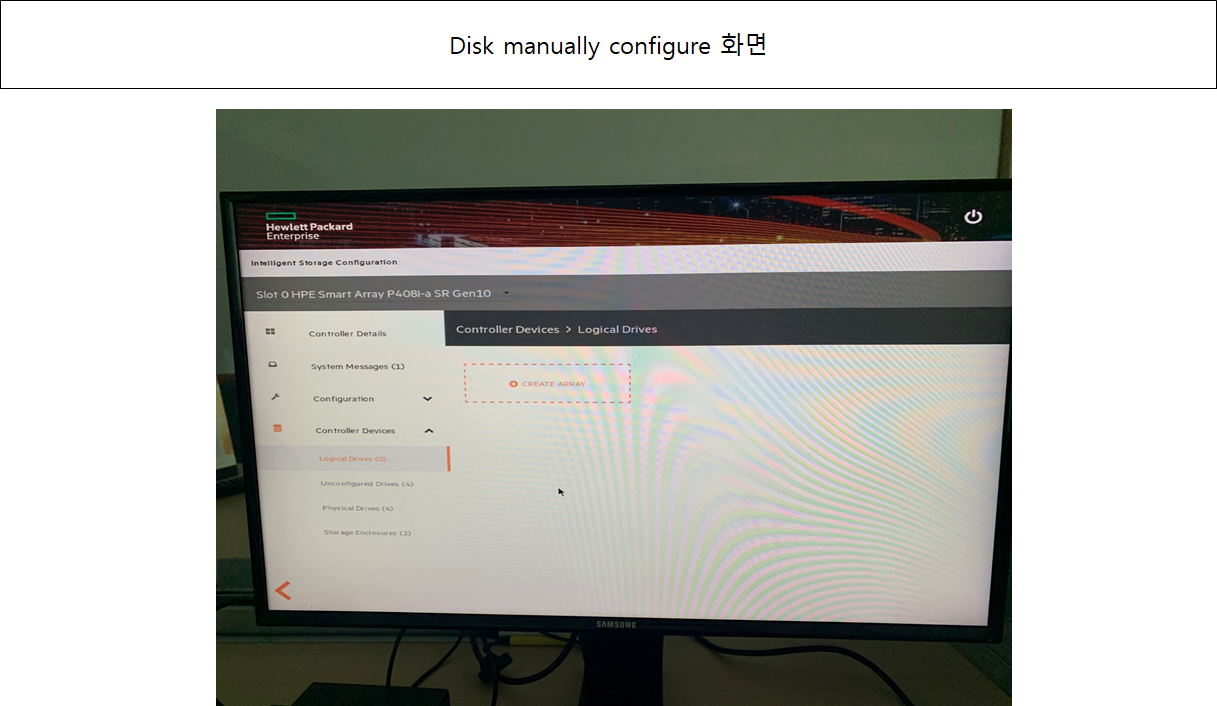
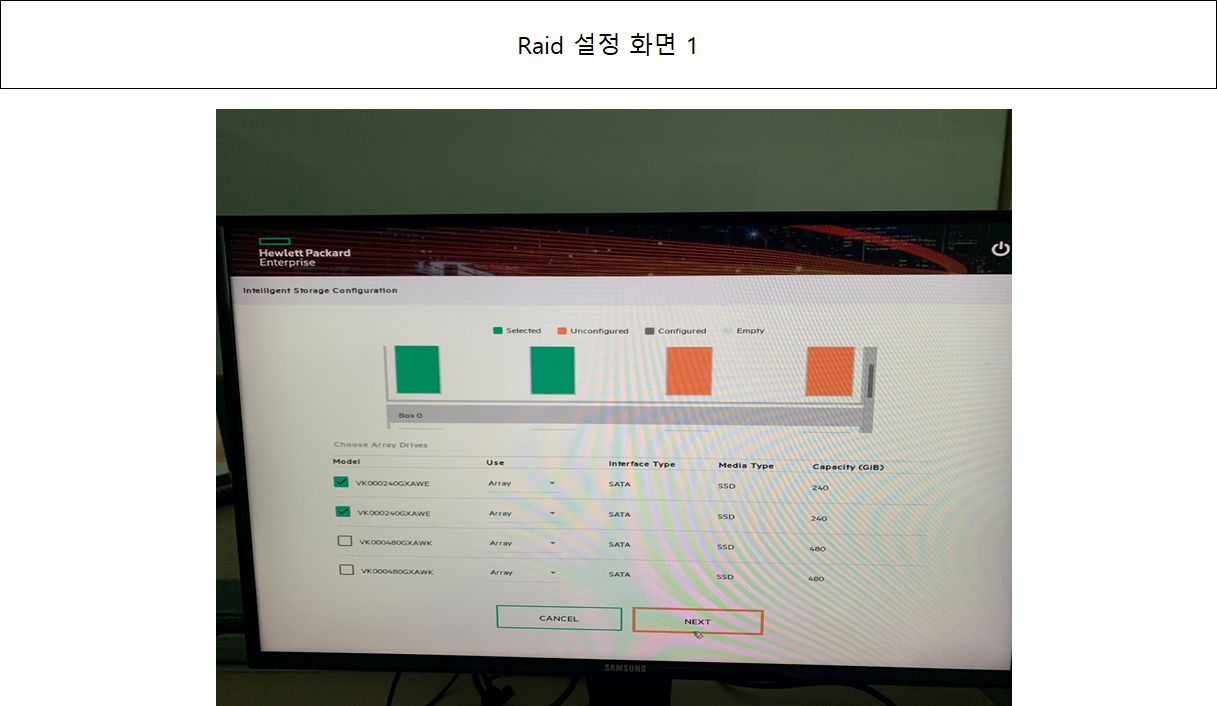
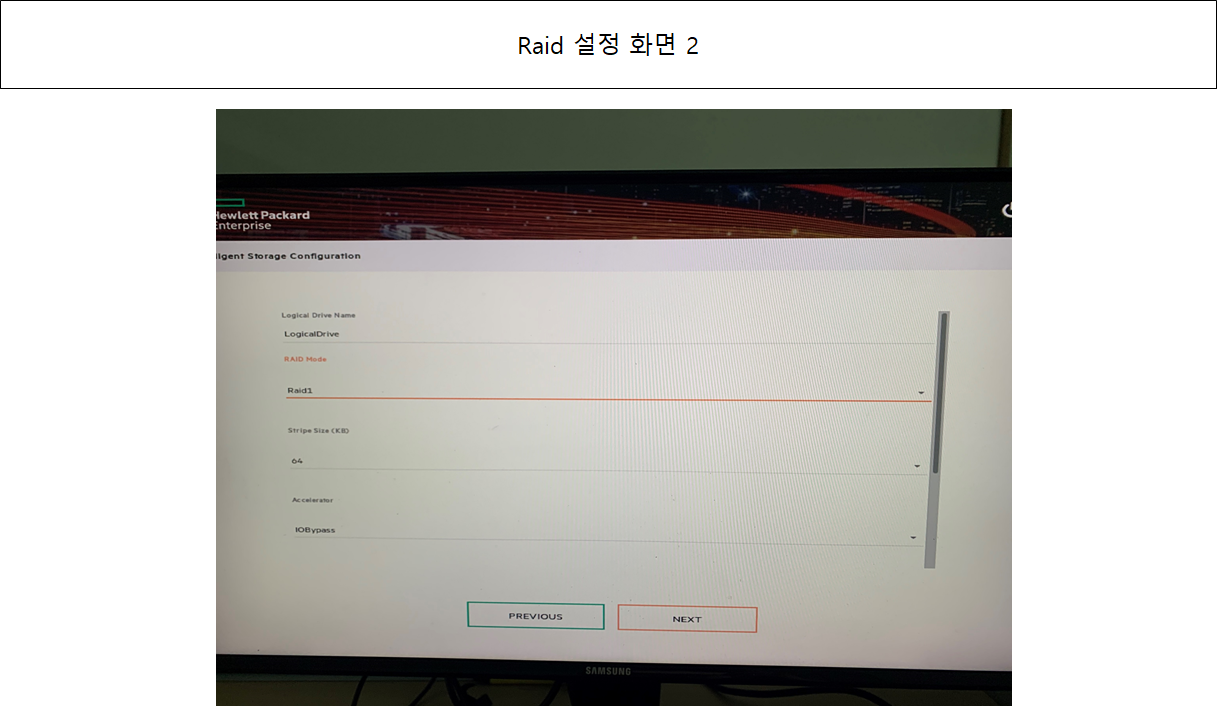
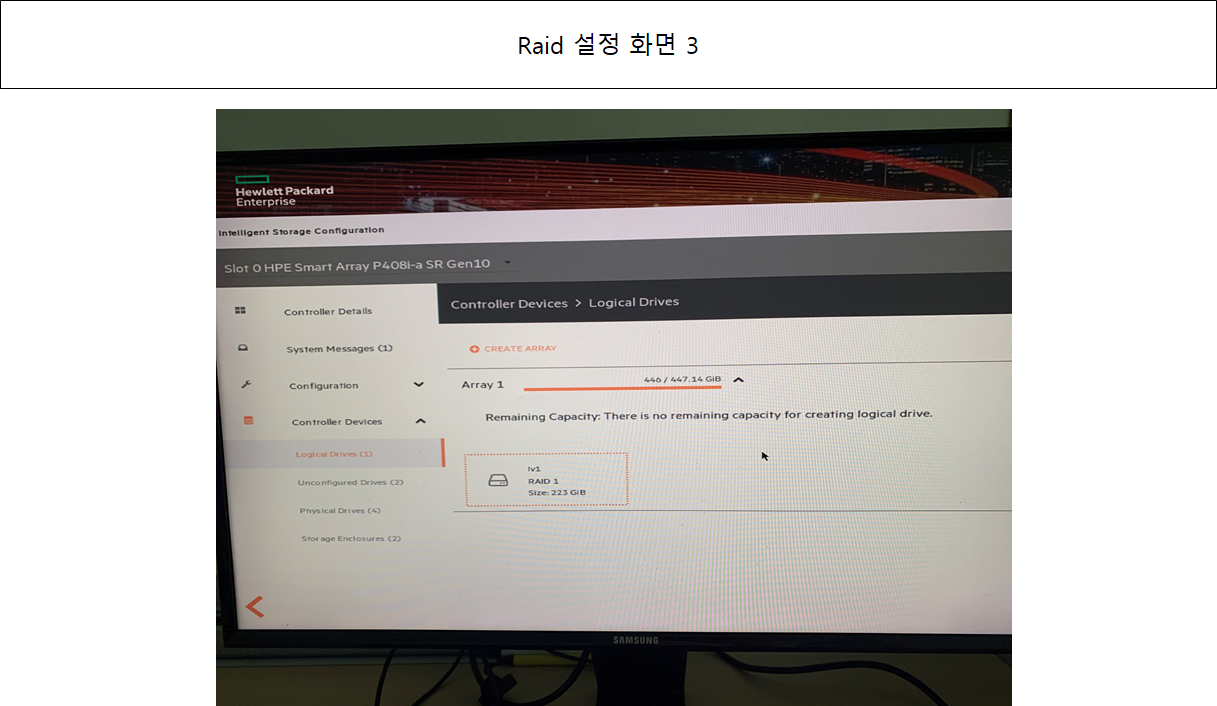
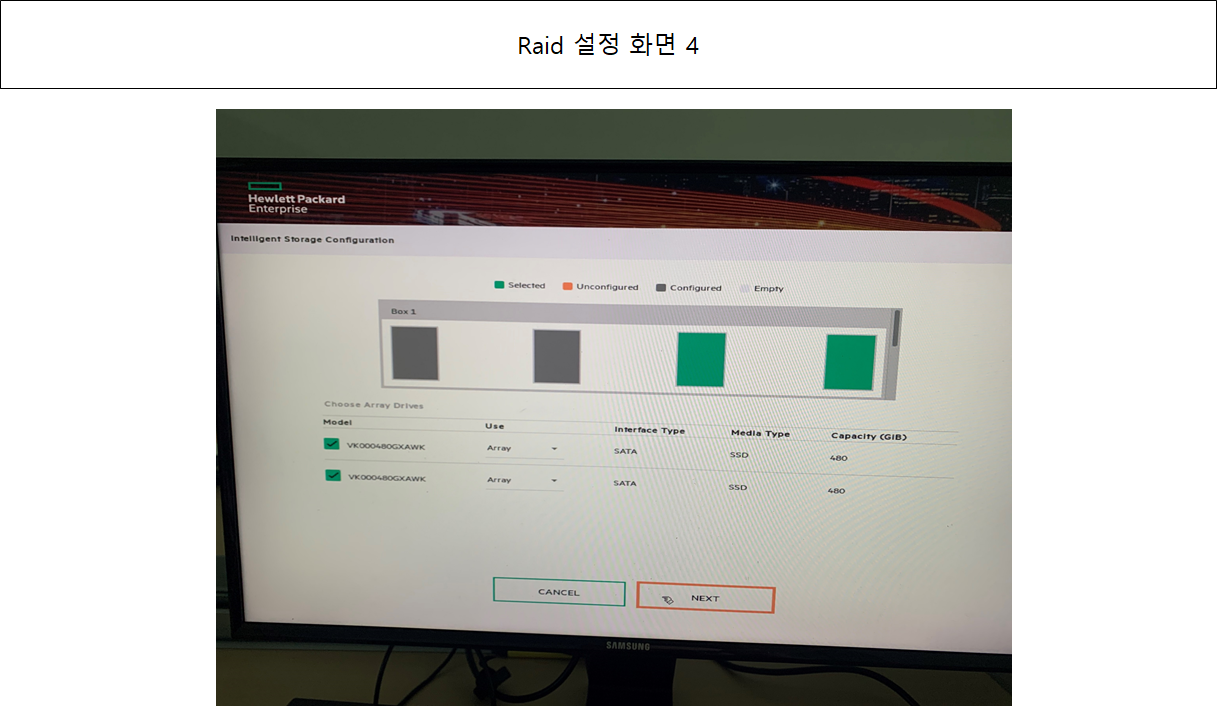
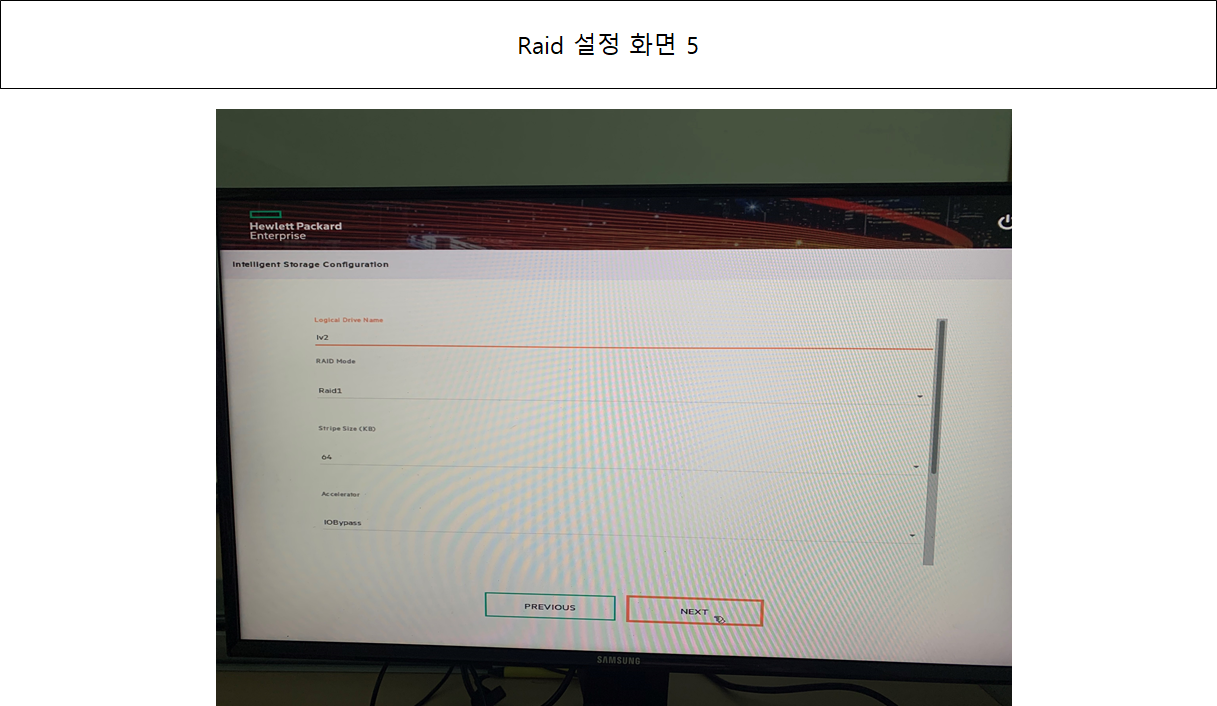
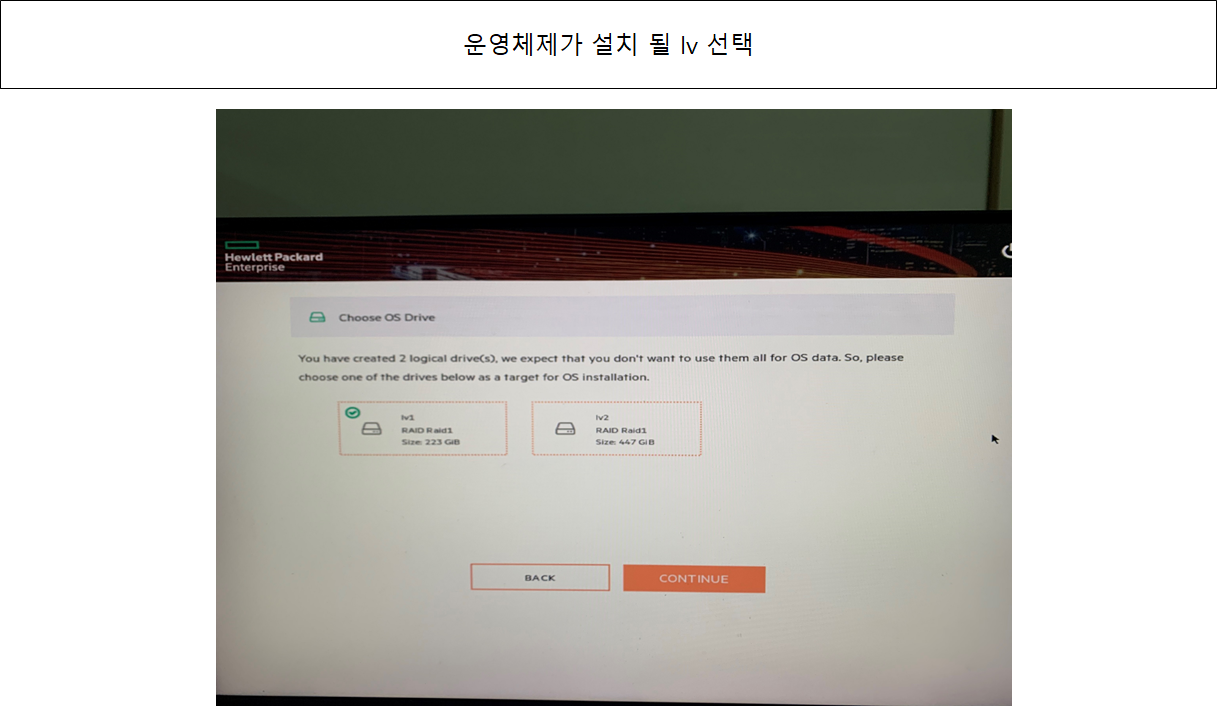
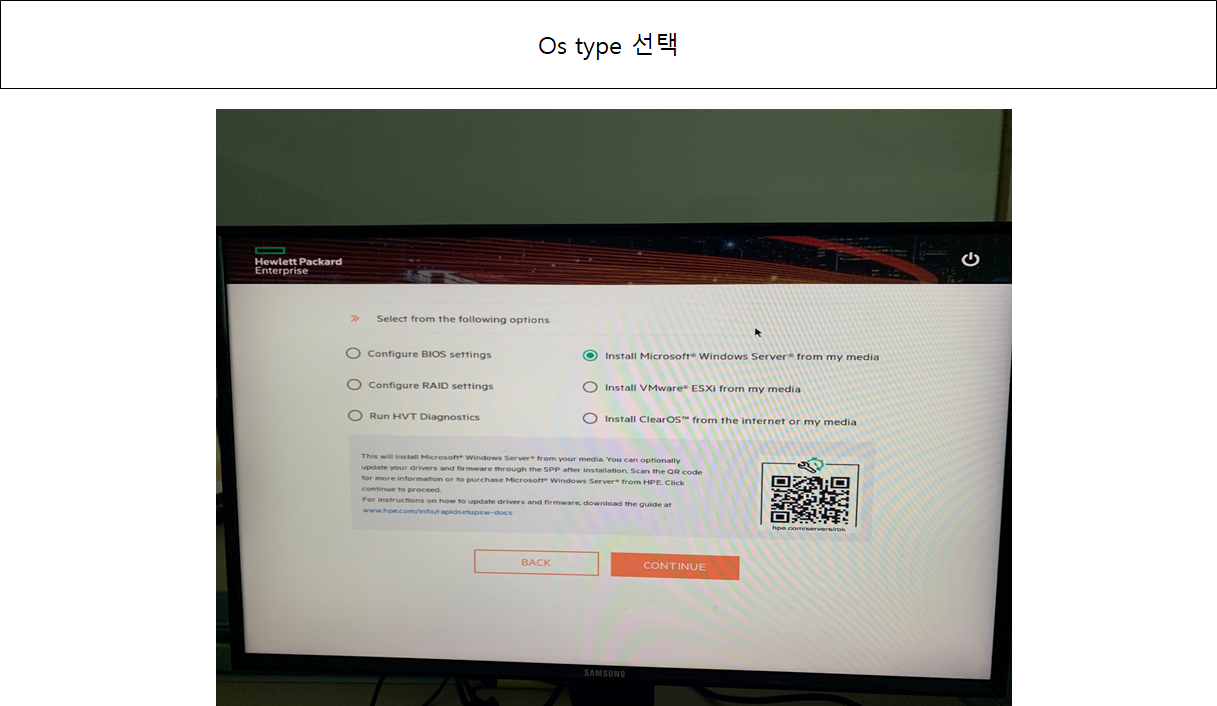
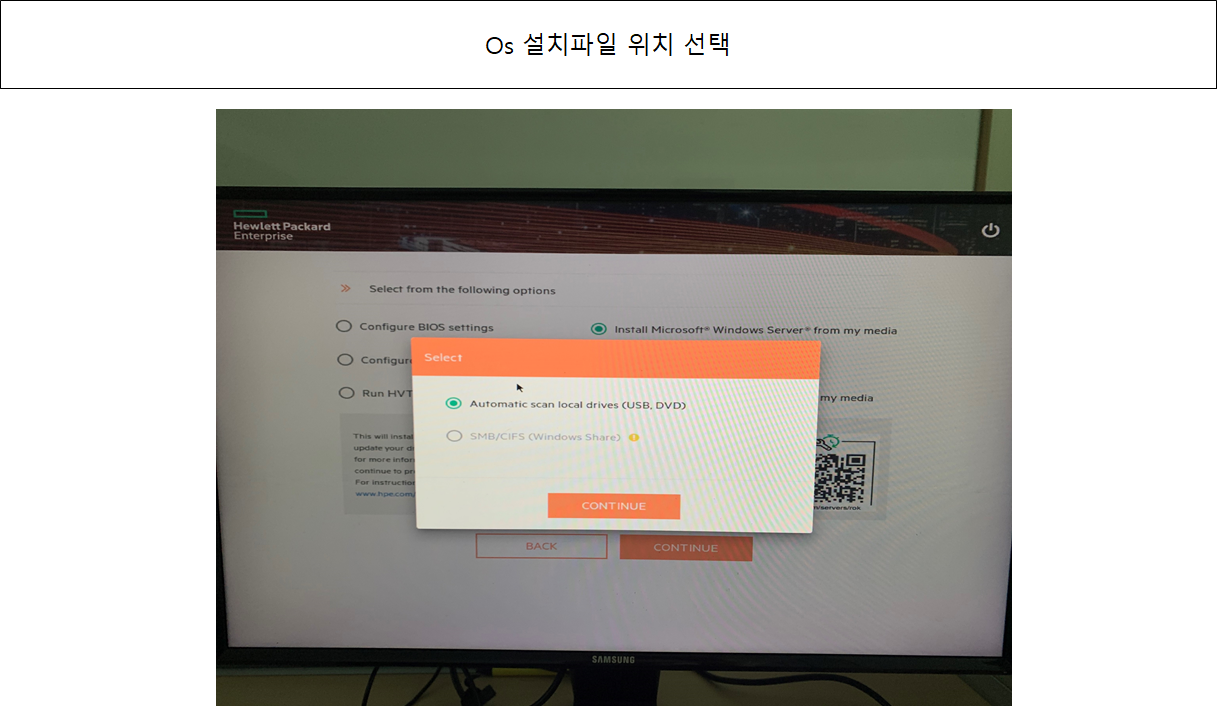
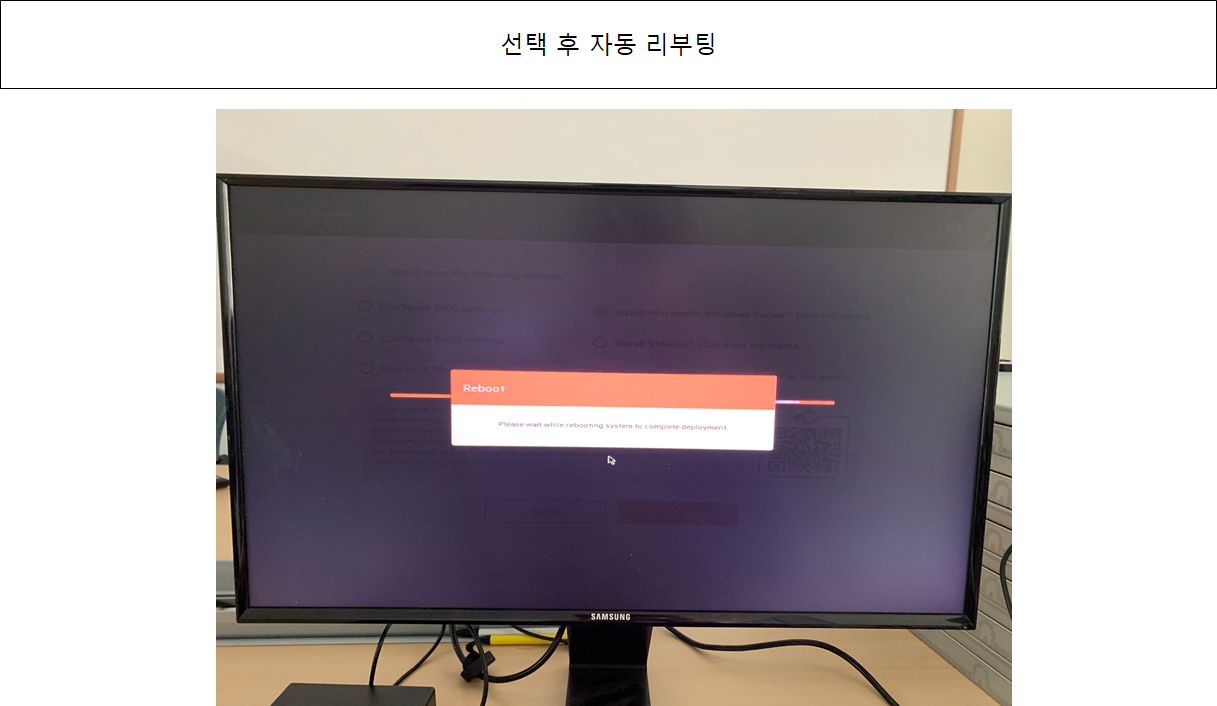
RAID 구성을 완료한 뒤 OS를 설치하기 위해 Configure and Install을 클릭합니다.
System Profiles, 업데이트 설정, RAID카드 옵션 등이 있습니다.
OS 종류와 설치옵션, 설치디스크 등을 설정합니다.
OS 설치 CD, USB, FTP, Network share 하나를 선택하고 CD/USB 을 마운트합니다.
OS를 선택합니다.
설정한 내용을 확인합니다.
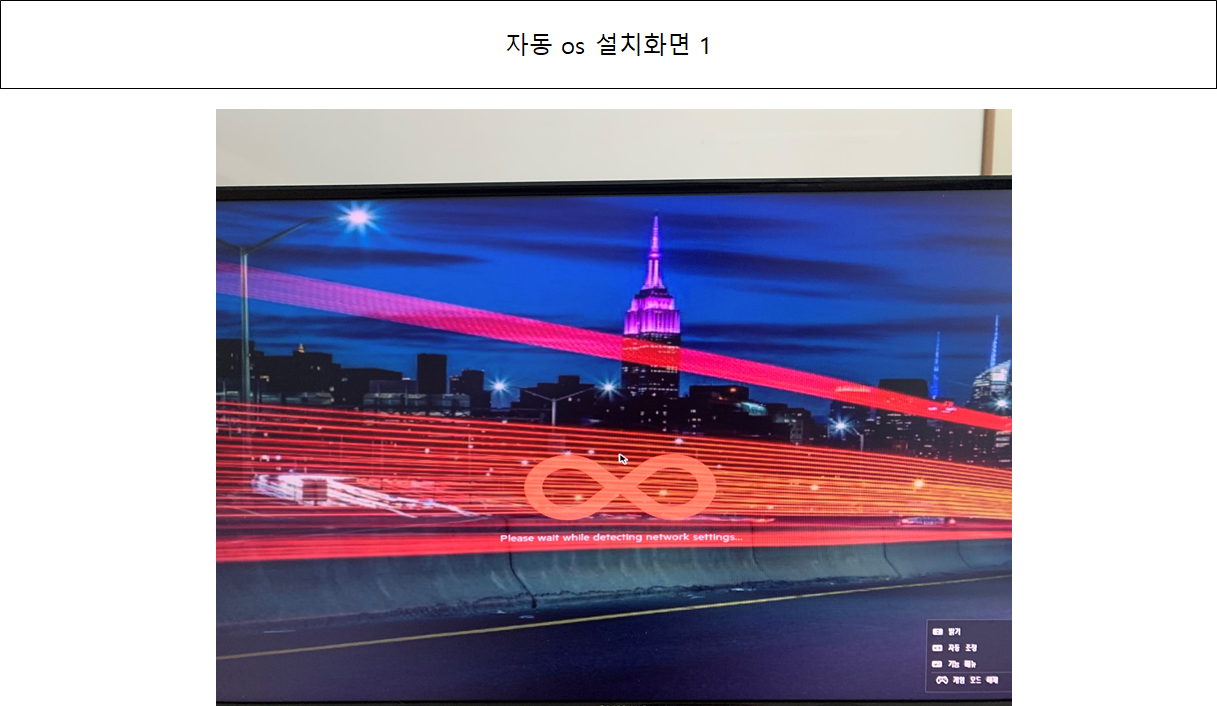
설치화면 1
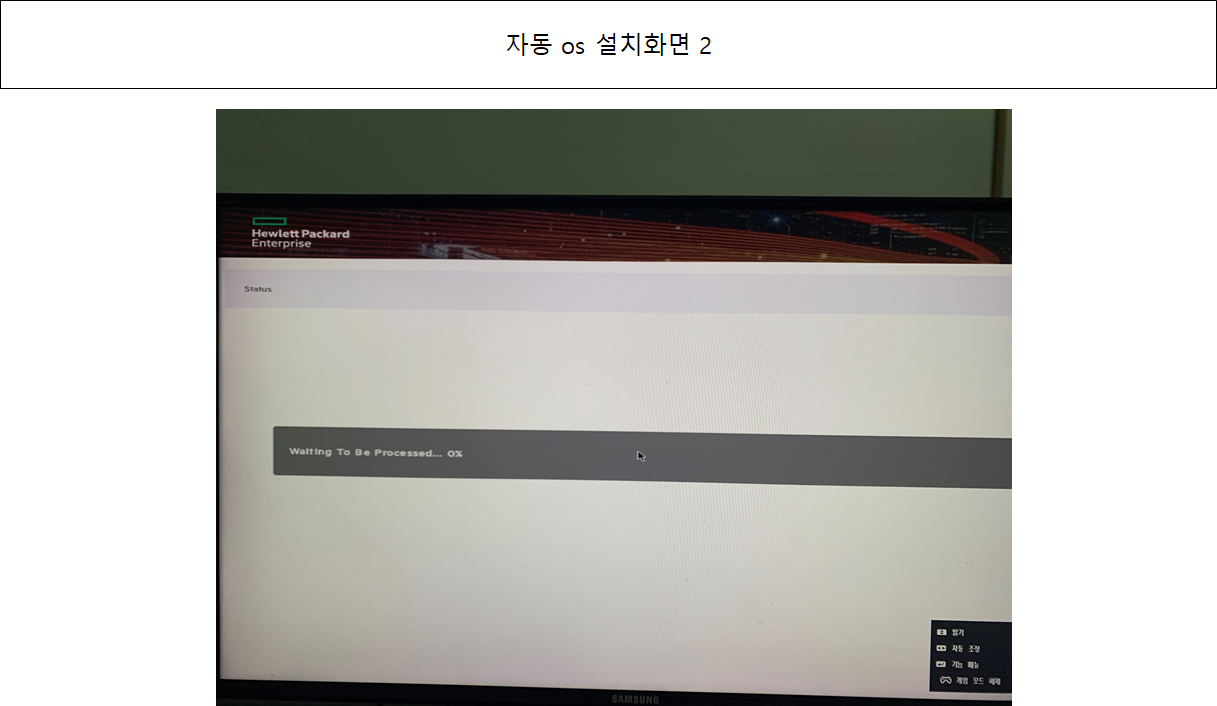
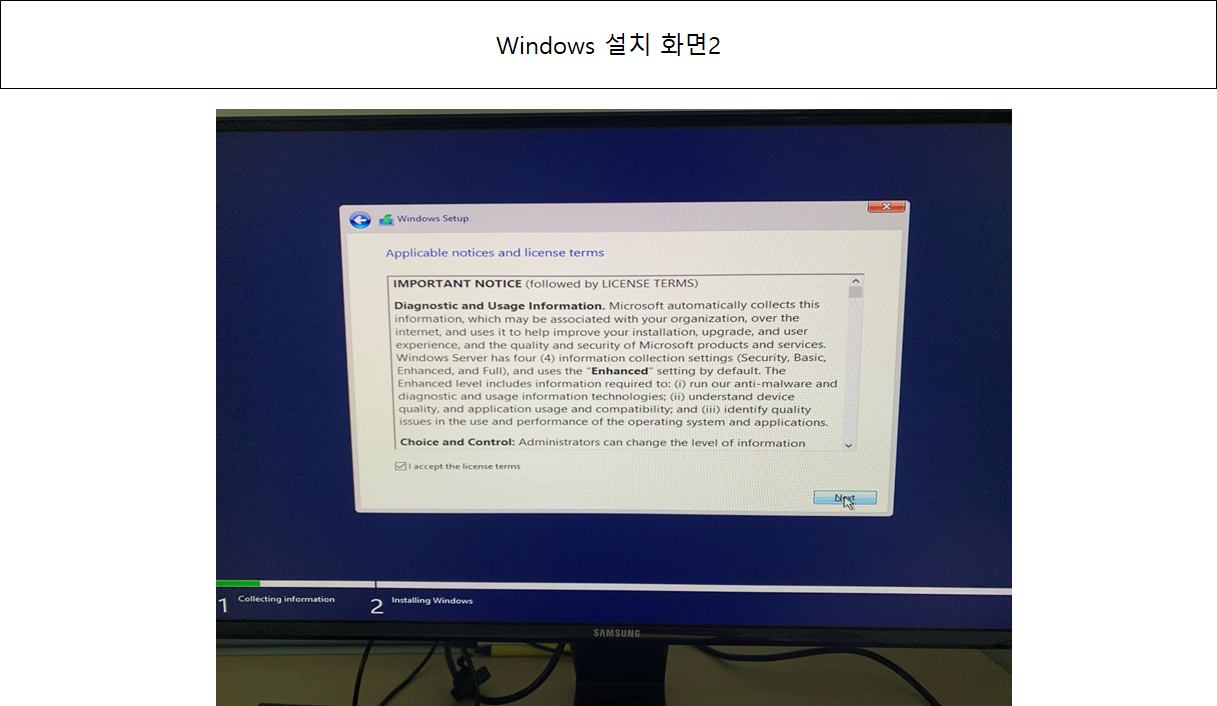
설치화면 2
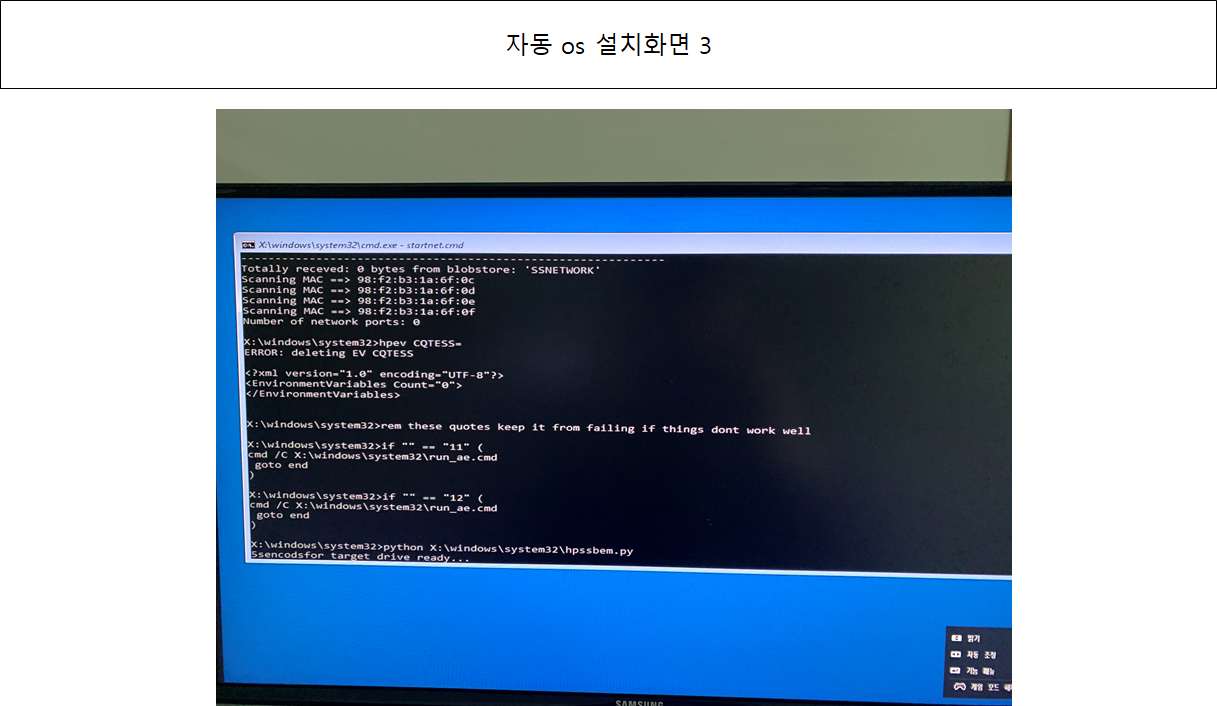
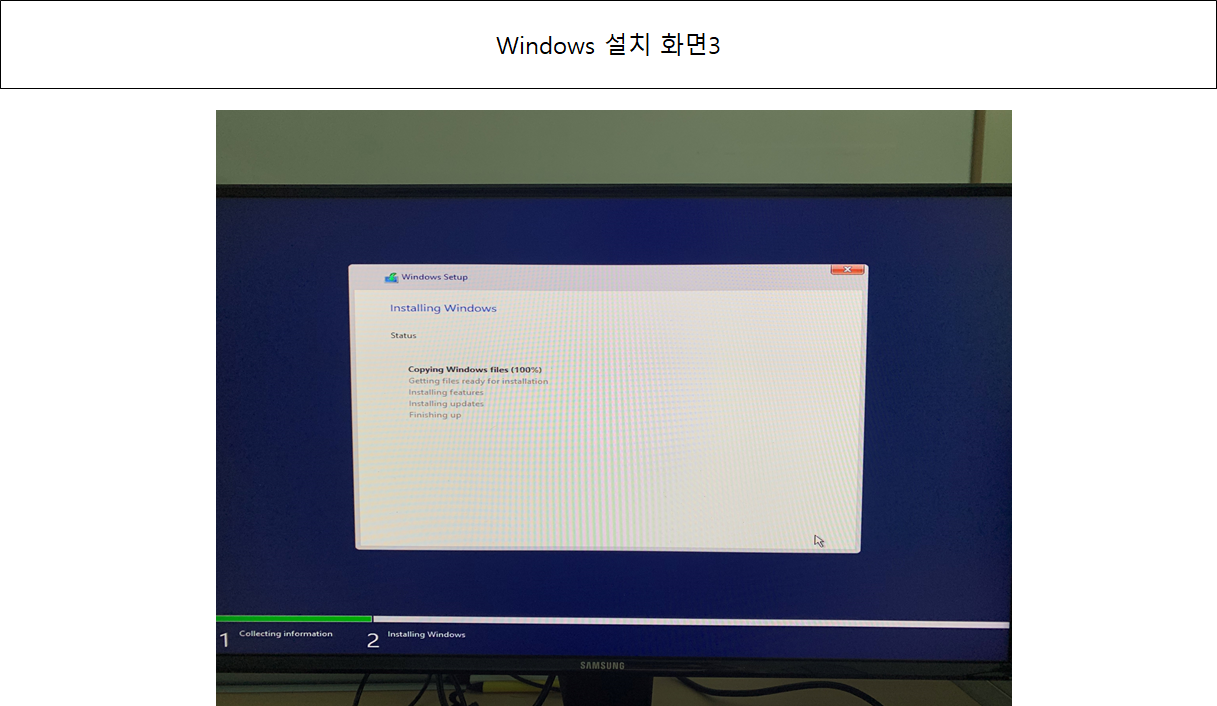
설치화면 3
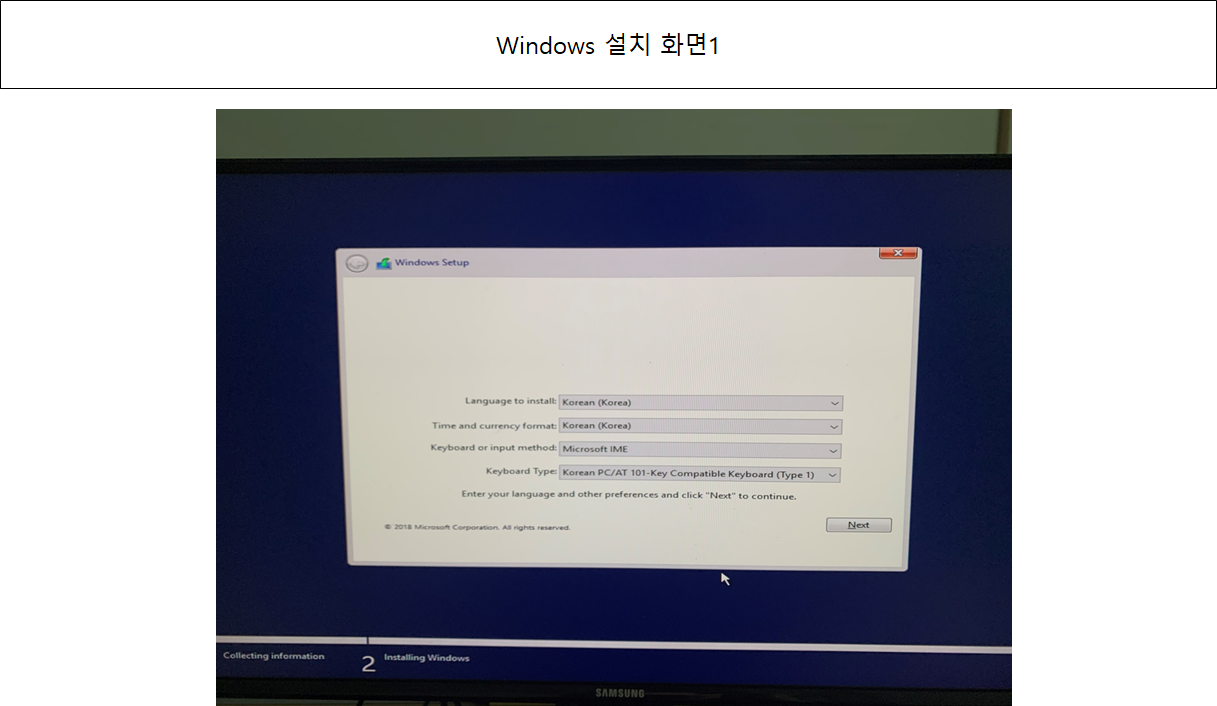
설치화면 4
설치화면 5
설치화면 6
설치화면 7
설치화면 8
설치화면 9
설치화면 10
마지막으로 관리자 계정의 암호를 설정합니다. 이상입니다.
실습
HP Server OS 설치
사용 DEVICE :
DL380P Gen8 2식
설치 OS :
Windows Server 2012 R2 std, CentOS 6.x
미리 공부한 것과는 다르게 Intelligent Provisioning이 초기설정이 일본어로 설정되어 있었습니다.
Intelligent Provisioning에서 언어 변경은 Perform Maintenance -> Intelligent Provisioning Preferences에 서 설정할 수 있습니다.
또 OS 설치 디스크를 인식 못하는 오류가 발생해 firmware 업데이트(SPP), USB부팅 iodd 부팅 등 시도를 해보았지만 아직 해결을 못했습니다.
오류 해결을 위해 구글에 검색을 해보았는데 다음과 같은 답변이 있었습니다.
질문
Installation 2012 through HP Intelligent Provisioning I am trying to install a Windows Server 2012 throuhg HP Intelligent Provisioning on a DL360p Gen8 server, however the OS installation source is not being detected. I have tried with both DVD-Drive on my Windows 7 client and as well as iso. On both occassions I get the error message "Unable to find any valid media, add and choose 'rescan'" But I able do both and install the OS without HP Intelligent Provisioning with the same source the HP Intelligent Provisioning is not detecting, only I do not have HP driver installed. It is not a must that the installation has to be performed throuhg HP Intelligent Provisioning, but where do I get driversupport tools installed for the system. I could not find any link to appropriate Support Pack for Windows Server 2012 on HP site. My view is the reliability between HP Intelligent Provisioning and Windows Server 2012 source, as I was able to also provision the same system with Windows Server 2008 R2 through HP Intelligent Provisioning.
Any help please.
답변
Hello You can use SPP to update your drivers/firmware/software from operating system. What is the version of intelligent provisioning you use? Windows 2012 supported only from version 1.30 and later. You can use Intelligent provisioning recovery media to update IP to the latest version. You can also get a detailed instruction on installing windows 2012 with intelligeng provisioning here. Was the post useful? Click on the white KUDOS! Star.
생각 : firmware 업데이트는 했기에 Intelligent Provisioning을 재 설치 해야 될것 같습니다.
Intelligent Provisioning을 재설치 결과 디스크 인식이 안되는 오류가 해결 되었습니다.위 방법으로 Windows Server 12 Std, Centos6.7을 설치하다 CentOS는 무료버젼 Intelligent Provisioning에서는 지원이 안된다는 것을 알게 되었습니다. 또 RedHat 계열의 RHEL을 설치하는 도중 패키지 선택화면이 없이 바로 자동 인스톨이 되어 Intelligent Provisioning를 거치지 않고 F11번을 눌러 Boot Menu를 통해 설치를 했습니다.